

|
|
 |
|
 |
|
 |
|
|||||||||
|
 |
|
Questions :
Question : Answer:
* The body cap, eyecup and hot shoe cover are attached to the camera. Note:
OM Workspace: The OM Workspace software CD-ROM is not packaged with the OM-5 Mark II camera. The software is available to OM Digital solutions/Olympus camera users via Internet as a free download. (The serial number of the camera is required.) Question : Answer:
Note:
The images taken by focus stacking mode will have the periphery of the original image cut off by approximately 7% after the processing. The frame in the following image indicates the area with focus stacking effect that remains after the cut. 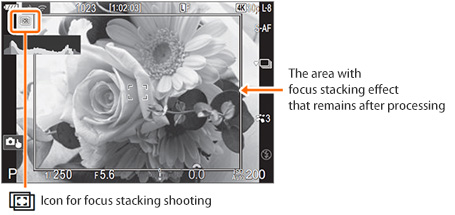
Question : Answer:
Refer to the following Q&As for information on using external power sources. Q&As regarding external power source usage1. What are the voltage and current requirements for external power sources (USB devices such as USB-AC adapters and mobile batteries) that can be used with the OM-5 Mark II?
External power sources must meet the following requirements: 2. Does the OM-5 Mark II conform to the USB-PD standard?
No, the OM-5 Mark II does not conform to the USB-PD standard. 3. Can I use USB-AC adapters and mobile batteries that conform to the USB-PD standard as external power sources?
Yes, USB-AC adapters and mobile batteries that conform to the USB-PD standard can be used for power supply and charging. Because the OM-5 Mark II can only accept a small amount of power, it cannot operate in the same way as cameras that conform to the USB-PD standard. Even if the external power source that conforms to the USB-PD standard provides an output of 27W or more (e.g., 9V 3A, 15V 2A, or 15V 3A), the camera cannot shoot using USB power alone or charge its removable internal battery while shooting. 4. When the internal battery is running low, can the camera continue shooting if connected to an external power source (USB device such as an USB-AC adapter or a mobile battery)?
No, the camera cannot continue shooting when the removable internal battery runs out. The camera operates using both the removable internal battery and external power source. Therefore, if the internal battery level is already low, connecting an external power source may not significantly extend the recording time. To reduce battery consumption and record for a longer time, connect the external power source while the battery level is still sufficient. By using both the battery and the external power source from the beginning, you can minimize battery drain during recording. 5. Does charging start automatically when the camera enters sleep mode while connected to an external power source (USB device such as an USB-AC adapter or a mobile battery)?
No, the battery inserted in the camera will not be charged while the camera is in sleep mode.
Also, charging will not start if the camera automatically powers off after being in sleep mode for a certain period. 6. What should I do to shoot for a longer time while using an external power source (USB device such as a USB-AC adapter or a mobile battery)?
To enable longer shooting times, turn off the camera when you are not recording. This allows the removable internal battery to be charged when the camera is not in use. The recommended usage pattern is: shooting (power ON) → charging (power OFF) → shooting (power ON). 7. Can I keep shooting when the camera is powered by a USB-AC adapter?
No, you cannot keep shooting when powered only by a USB-AC adapter. Even when the USB-AC adapter is connected, the camera operates using power from both the battery and the adapter. Since it cannot operate on USB-AC power alone, shooting will stop when the battery runs out. While the USB-AC adapter alone cannot power the camera, using it in combination with the internal battery helps reduce battery consumption, allowing for longer recording times. 8. Can I charge the removable internal battery while shooting with an external power source (USB device such as a USB-AC adapter or mobile battery)?
No, when the camera is turned on, the removable internal battery will not be charged even if an external power source is connected. Question : Answer: Yes, you can use the OM-5 Mark II as a webcam for online meetings or live streaming once you connect the camera to your computer. Since no additional drivers or applications (such as OM Webcam Beta) are required, you can use this camera as a webcam simply by connecting it to your computer via USB. How to use the OM-5 Mark II as a webcam
Notes:
Notes on Using the Webcam Function:
Question : Answer: When Handheld Assist is turned on, the camera displays white indicators on the monitor to show shake status when the shutter button is pressed halfway or during exposure. This feature helps reduce camera shake during handheld long-exposure photography. The gray frame shows the area within which camera shake can be corrected. To minimize shake, hold the camera so that the outer indicators (representing roll shake, shown on the gray frame) stay near the center left/right, and the center indicator (representing horizontal and vertical shake, shown within the frame) stays near the center. How to set Handheld Assist: Press the [MENU] button. In Notes:
|
|||||||||||||||||||||||
|
||
|
 |
|
|
|||
  |










 (movie mode).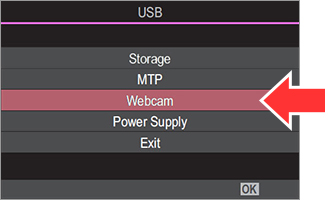
 is set to 60p, 30p or 24p, video is streamed at 30p. When it is set to 50p or 25p, video is streamed at 25p.
 8. Image Stabilizer, select Handheld Assist. Select Off (default setting) or On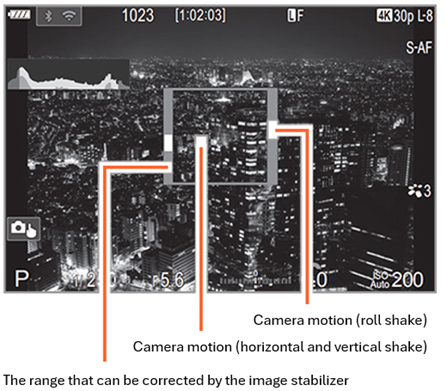
 Image Stabilizer is set to Off, Handheld Assist is displayed only during exposure.